PBX Application Guide
Sign up and Login
- After downloading and opening the application, you will be asked to log in or sign up. Log in with your existing account or register a new account if you do not have one.
- To log in, enter your registered email and password. After successful login, the application will open the main dashboard.
- To sign up, you must provide your name, email, password, and WhatsApp number. The friend referral ID is optional. After submitting the sign-up form, you will receive a success or failure message.
- If the sign-up is successful, the main application will open automatically. If the sign-up fails, review the error message, fix the issue, and try again.
- Important: You can create only one account per device for a lifetime. If an account is suspended, you will not be able to create another account on the same device.
- There is only one official way to sign up and log in—through the application itself. No other login or sign-up methods are supported.
- The application is strictly prohibited from being used on RDP or cloud-based systems. If account activity is detected via RDP, the account will be permanently suspended and cannot be restored.
- Accounts suspended due to misuse or policy violations are not eligible for restoration. However, if an account is suspended due to a system error, we will restore the account and assist in recovering any losses.
- All coins are valid only within this PBX application and cannot be used or transferred to other PBX applications.
Dashboard
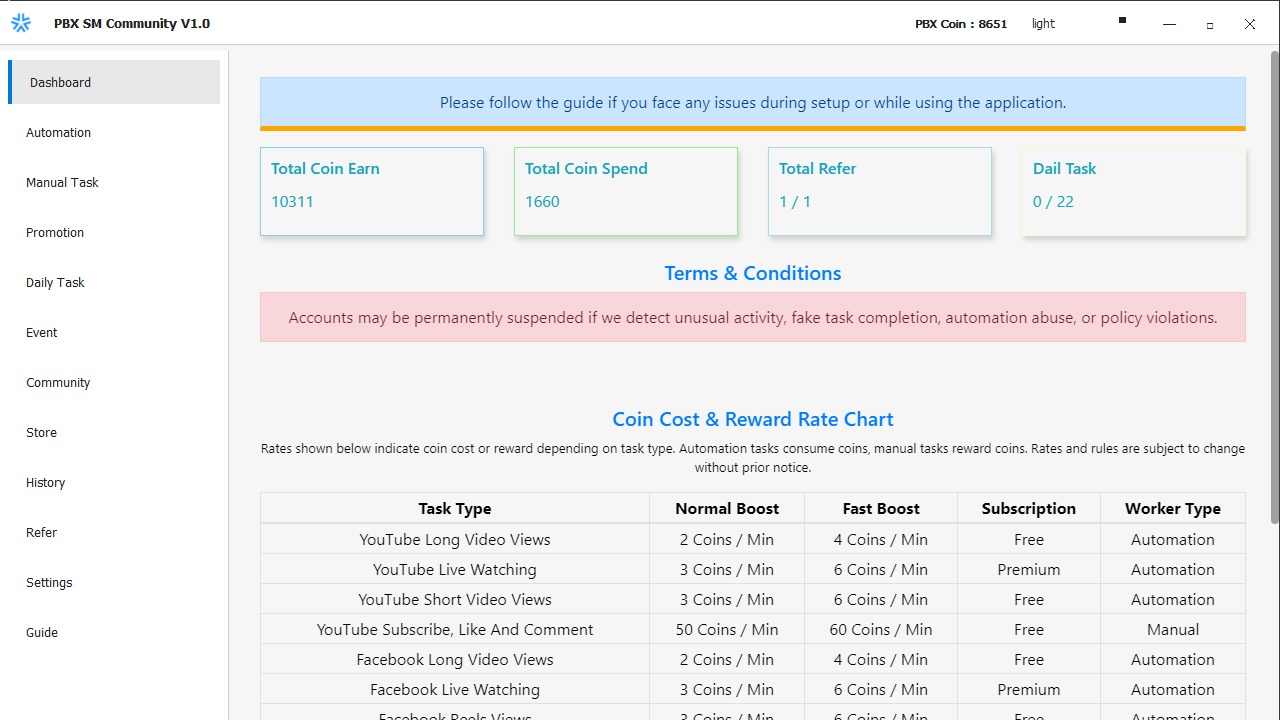
- In the application title bar, you can see your current available coin balance.
You can also change the theme using the dropdown button in the title bar.
After changing the theme, please reload the current page by clicking the active menu. - In the dashboard, you will see real-time reports.
- You will get a real-time list of coin credits and debits for both automation and manual tasks.
- The dashboard will also show official notifications, including new updates, changes, or important announcements.
Automation
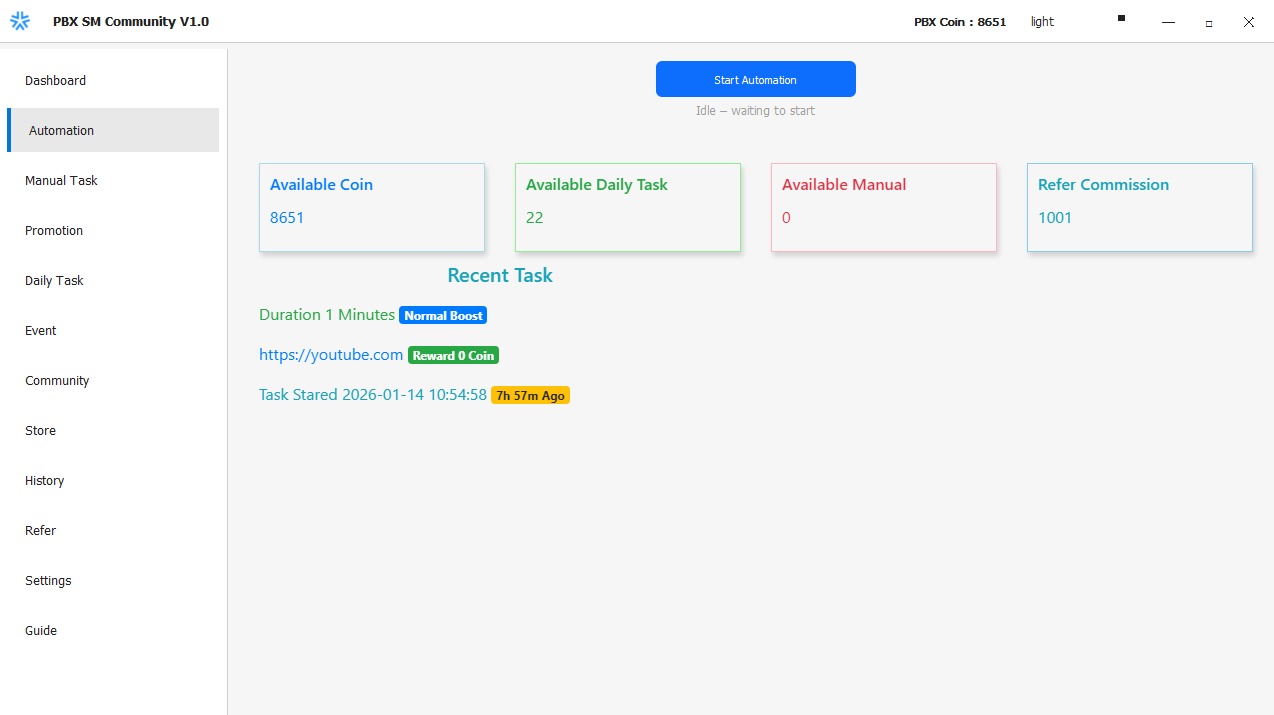
- Click the “Start Automation” button to begin the automation process.
- If you are a new user, the application will automatically download and set up the required browser.
- The application will automatically launch the browser and ask you to log in to YouTube. Once logged in, return to the application and click the “Login Done” button.
- The application will automatically verify your login status. If the account is detected successfully, it will move to the next platform. Otherwise, it will ask you to log in again on the same platform.
- You must log in to YouTube, Facebook, Instagram, and Rumble. Automation will not start until all platforms are logged in successfully.
- Once logged in, you do not need to log in again. The system will recheck login status every 12–24 hours. If any account is logged out, you will be asked to log in again.
- You do not need to use your original or personal accounts. You may use any account for automation tasks.
- The system actively monitors your activity. If you close the browser, automation will stop. Coins generated for completed actions will not be deducted.
- The application simulates real user behavior to bypass platform abuse and unusual activity detection, including mouse movement, scrolling, and active browser focus.
Important: While automation is running, you cannot use the system for other work.
The system must remain idle, and user interaction is restricted during automation.
- To stop automation, click the “Stop Automation” button or close the automation browser. Automation will stop within 30 seconds.
- Generated coins are counted only after a task is completed or stopped.
- You can monitor your coins, task status, completed tasks, and task details in the Automation section.
- The automation controls only the browser downloaded by the application. No access to other browsers or system resources is taken.
- We use Cent Browser for automation. Cent Browser is a Chromium-based alternative to Chrome. You can verify browser details on the official Cent Browser website.
Manual Task
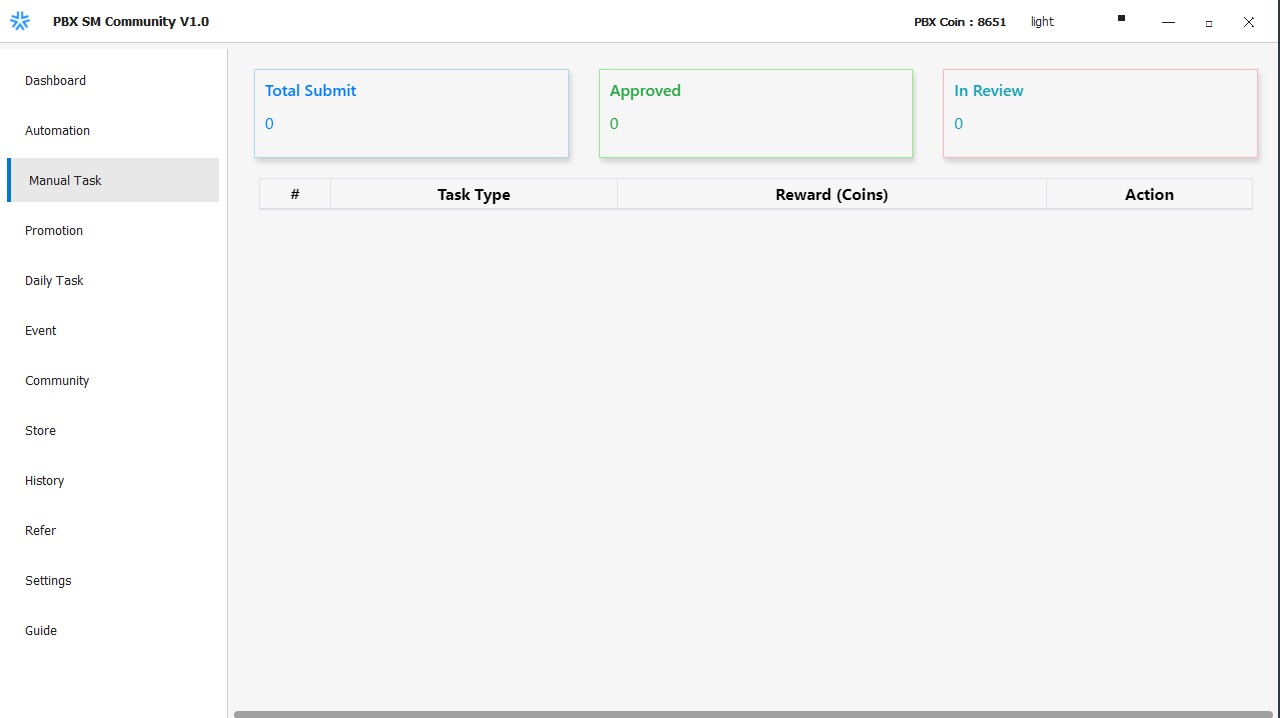
- Manual tasks are required to start promotions, claim daily task rewards, and participate in events for higher rewards.
- The manual task list refreshes every 10–20 minutes.
- Each manual task includes a Start button. After clicking it, a popup will appear with the promotion link and task instructions. Follow the instructions carefully to complete the task successfully.
- After completing the task, you must submit the channel or profile link used to complete the task and upload a screenshot as proof.
- If you receive a task that you have already completed in the past, please ignore it and wait 10–20 minutes for a new task. Rewards are not granted multiple times for the same task.
- Please be careful: an automated system and our review team will verify your submitted proof and channel/profile link. If the task is not completed correctly, no reward will be credited. Repeated unusual or false submissions (3–5 attempts) may result in account suspension.
- Manual task verification may take up to 0–24 hours to complete.
- Other manual task rewards (promotion, daily tasks, and events) are counted immediately after you submit the review request. No additional waiting is required after submission.
Promotion
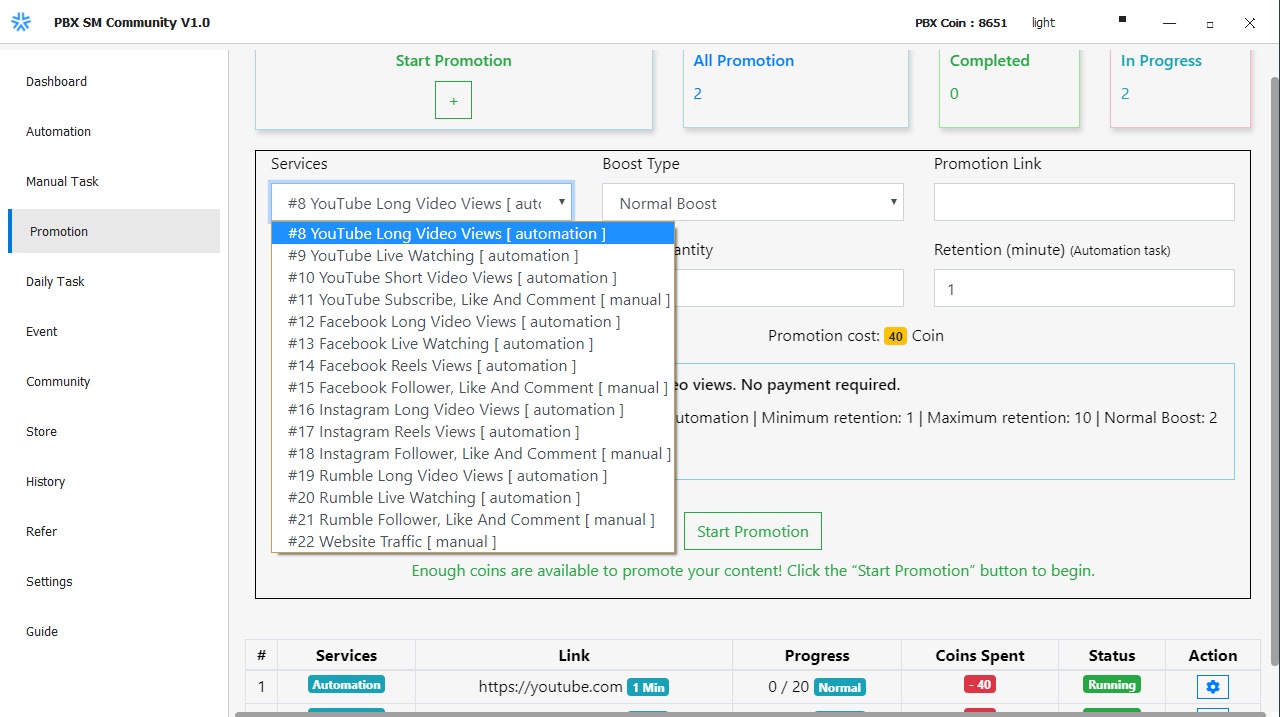
- In the Promotion section, you will see a progress bar showing the completion status of automation and manual tasks. Complete the remaining tasks shown in the progress bar to unlock the Add Promotion button and start your own promotion.
- Once the required tasks are completed, the Add Promotion button will be unlocked immediately. If it does not unlock, click the Promotion menu once again to refresh.
- Before starting your promotion, double-check the selected service, promotion link, and required action quantity. After starting a promotion, you are allowed to update or change the promotion settings up to two times while it is in progress. You cannot cancel a promotion once it has started. Completed promotions cannot be restarted.
- You cannot downgrade a promotion. You are only allowed to upgrade the promotion if required.
- You will see real-time promotion calculations while adjusting the action quantity, boost, and retention settings.
- For manual tasks and short videos or reels, retention does not matter. Please do not change the retention setting.
- Promotions are completed based on the selected boost level. Do not promote the same content link repeatedly while a promotion is in progress, as this may be detected as unusual activity and could result in dropped views or actions. It is recommended to wait at least 48 hours before promoting the same content again or to promote multiple different content links instead.
- Please be careful before starting any promotion. Review the service details and requirements shown at the bottom of the promotion form.
- After starting a promotion, you can track it in the promotion list, where you will see the chart, current progress, and status.
Daily Task
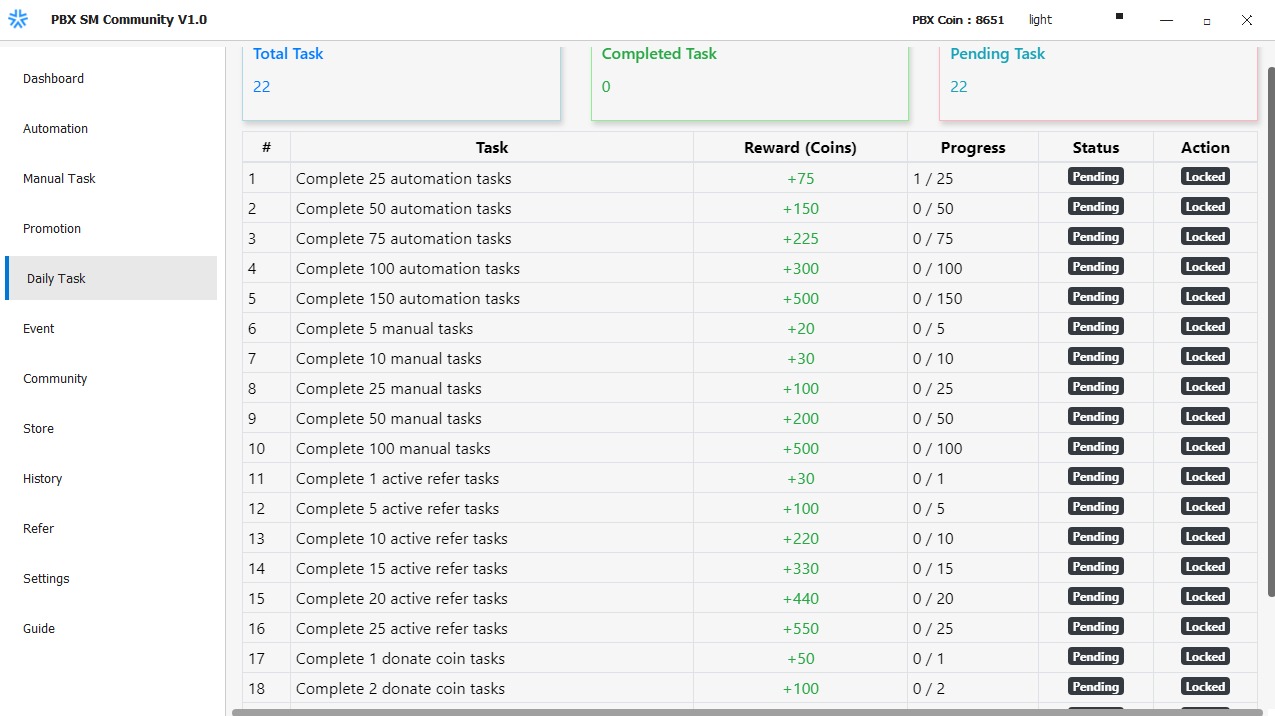
- In the Daily Tasks section, you can earn additional coins. These coins help you get extra promotion benefits.
- Daily tasks are completed by performing activities such as starting automation, completing manual tasks, starting a promotion, referring someone, or donating coins to another user.
- Each daily task shows the required and completed task quantity. Once all requirements are completed, a Claim button will appear. Click the button to receive your reward.
- Daily tasks refresh every day. You must claim your reward before the refresh; otherwise, the task will be dismissed and replaced with a new requirement the next day.
Event
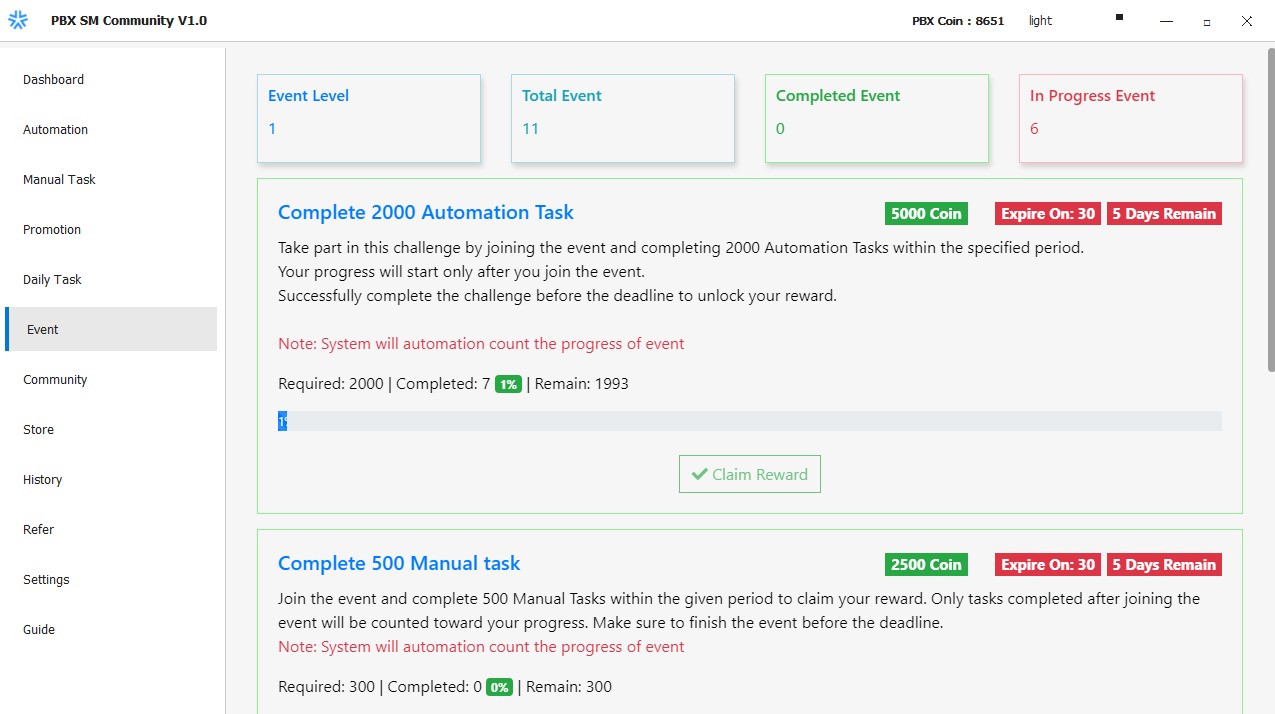
- In the Events section, you can earn additional benefits similar to Daily Tasks, but events take longer to complete. Event rewards are game-changing and provide significant promotion benefits.
- You must join an event to participate. After joining, activities such as automation, manual tasks, promotions, coin donations, and referrals are automatically counted by the system. Each event has specific criteria, and once all requirements are completed, a Claim button will appear to collect your reward.
- If there are any additional or special tasks, detailed instructions for event completion will be displayed.
- Events are assigned based on your event level. Once you complete all available events, your event level will increase and new events will be unlocked.
- Each event has a specified time period for completion. If the event is not completed within the given time, the reward cannot be claimed.
- You can track your event status at any time. Real-time reports will show your event progress, required tasks, and completed task quantities.
Community
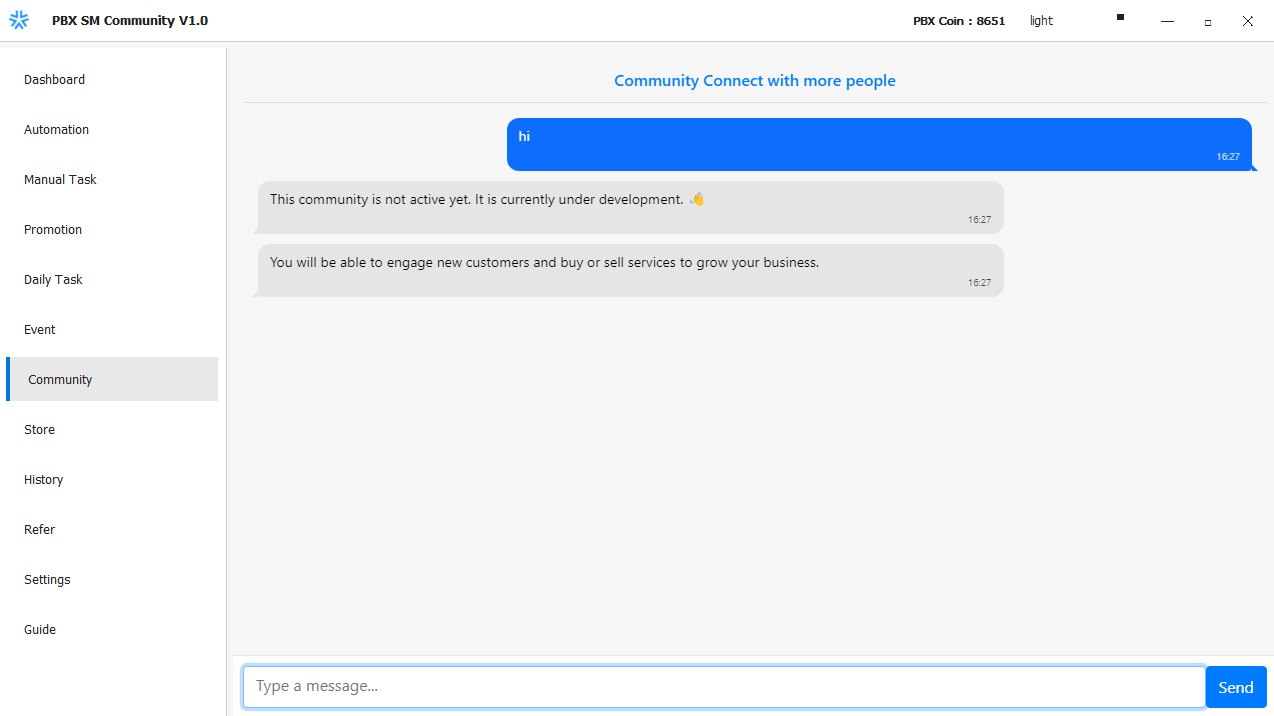
- You can use the Community section to connect with more people and boost your business effectively.
- You must purchase a Premium subscription to post messages in the Community.
- If you do not have a subscription, you can only view other users’ messages in the Community.
Store
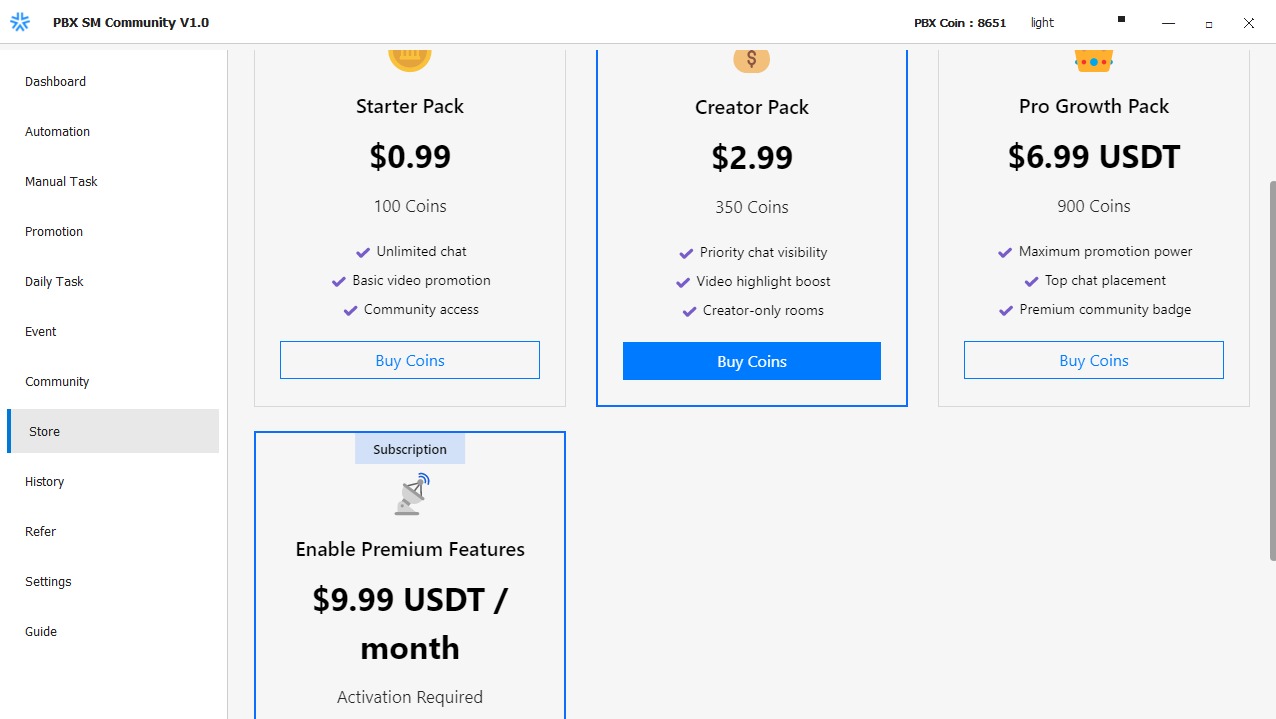
- Here you can purchase coins and subscriptions to unlock additional benefits and premium features.
- A subscription is required to unlock premium promotions, Ultra Boost, and Community messaging.
- When you click Buy Coins or Buy Subscription, a popup will appear with payment details. Make the payment for the selected coin package or subscription plan.
- After payment, submit a review request with the selected package and upload a screenshot of the payment proof. Our team will manually review your proof and process your request.
- Submitting fake payment proofs or reusing the same payment proof for multiple requests may result in account suspension. You will be notified once for correction before suspension.
- You can track your request status in the same popup by clicking the “Show Recent Requests” button.
- You may contact us via our official WhatsApp for faster processing. However, you must submit the review request first. The official WhatsApp number is available in the same popup.
History
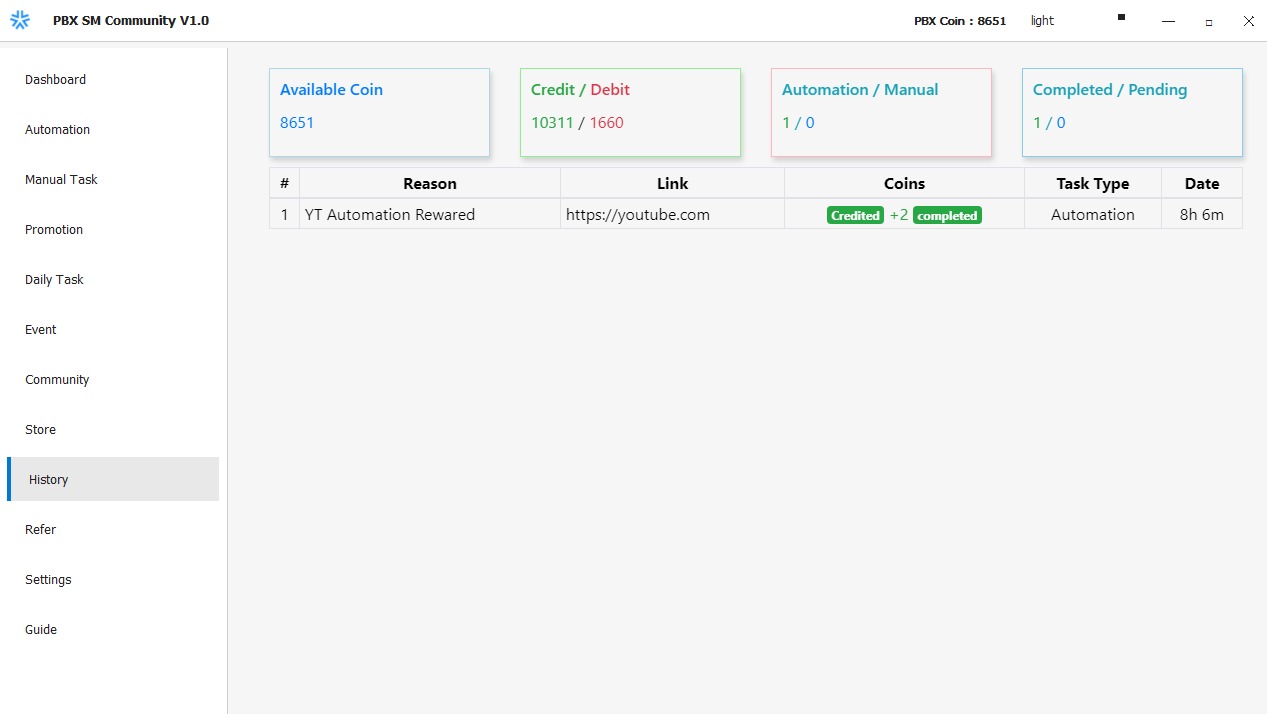
- In the History section, you can view a list of coin credits and debits related to automation, manual tasks, promotions, referrals, and other activities.
- History records are automatically cleared after 48–96 hours.
- You can view only the last 50 activities.
Refer
- Invite your friends to earn additional benefits. You will receive extra rewards through referrals.
- You can claim referral rewards once a referred user is counted as an active referral.
- The criteria to qualify as an active referral are shown for each user. You can track the progress of criteria completion in the referral list.
- Once all criteria are completed, a Claim button will appear. Click it to receive your reward.
- After a referred user becomes active, you will earn a 1% commission from each completed automation and manual task performed by that referral.
- No commission is earned from referred users’ daily tasks or other reward types.
- Your friend must submit your referral ID during the application sign-up process.
- If the referral ID is not submitted during sign-up, the system will prompt your friend to enter your referral ID in the Referral section.
- Donation: You can also donate coins to help your friends. Donations can be sent to any user of the application, not only your referrals.
- Click the Send Donation button, enter the recipient’s referral ID, and submit the donation. Donated coins are non-refundable.
- Donated coins can be used by the recipient to exchange or use within the PBX application ecosystem.

Settings
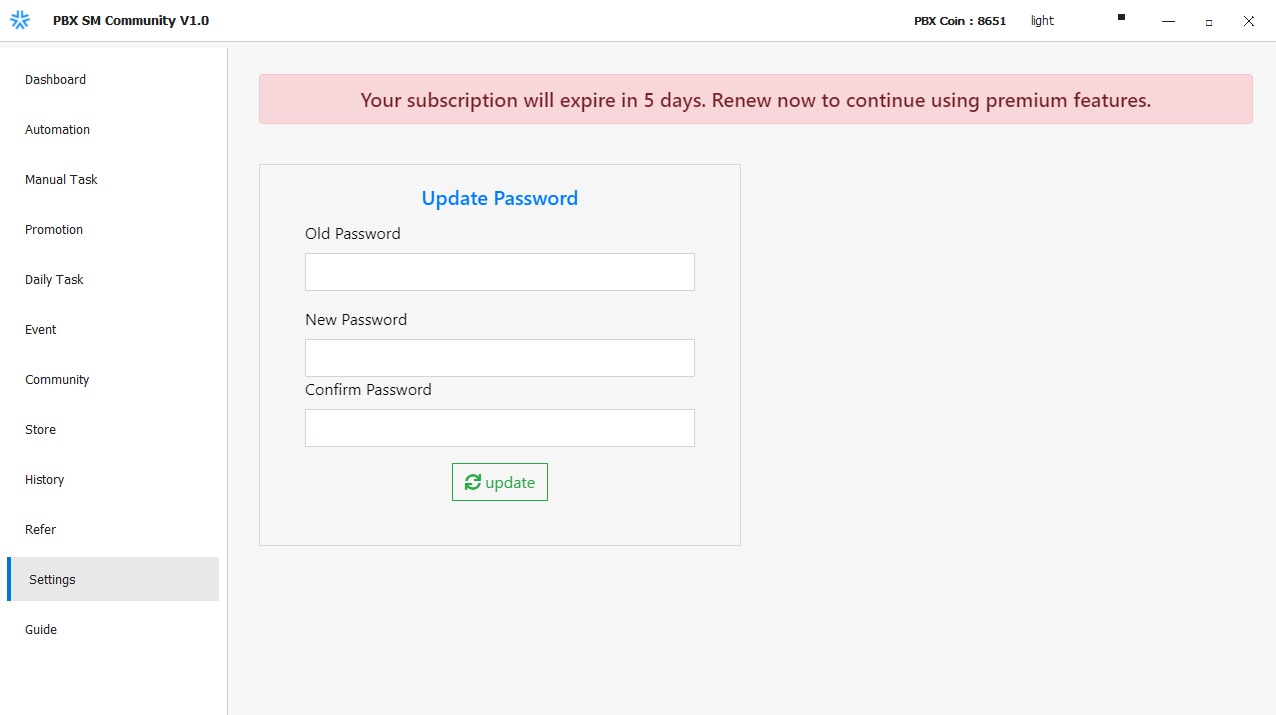
- In the Settings section, you can change and update your profile and account-related details.
- You can also build and manage your Community business profile.